
When building Android apps, keeping the app size small is critical. A larger app size can reduce install rates and frustrate users with slower devices or limited data plans. Google’s Play Asset Delivery (PAD) helps developers manage large assets more efficiently by offering flexible delivery options and reducing app sizes through Android App Bundles. Here’s a quick summary of how PAD works and why it matters:
- Delivery Modes: Choose between Install-time (assets downloaded during installation), Fast-follow (assets downloaded post-installation), or On-demand (assets downloaded as needed).
- Smaller Downloads: Android App Bundles reduce app size by ~20%. Delta patching ensures updates only download changes, not entire files.
- Efficient Hosting: Google Play hosts all assets for free, saving costs on external hosting.
- Texture Optimization: Use Texture Compression Format Targeting (TCFT) to ensure users download only the textures their devices need, cutting unnecessary downloads.
- Compression: Convert images to WebP or optimize PNGs to reduce file sizes without quality loss.
Example Success Stories:
- CD Projekt RED cut update sizes by 90%, increasing update completions by 10%.
- Devsisters saved over $200,000 in hosting costs.
- Gameloft gained 10% more new users by optimizing delivery.
Google Play Asset Delivery for games: Product deep dive and case studies (Google Games Dev Summit)

What Is Play Asset Delivery?
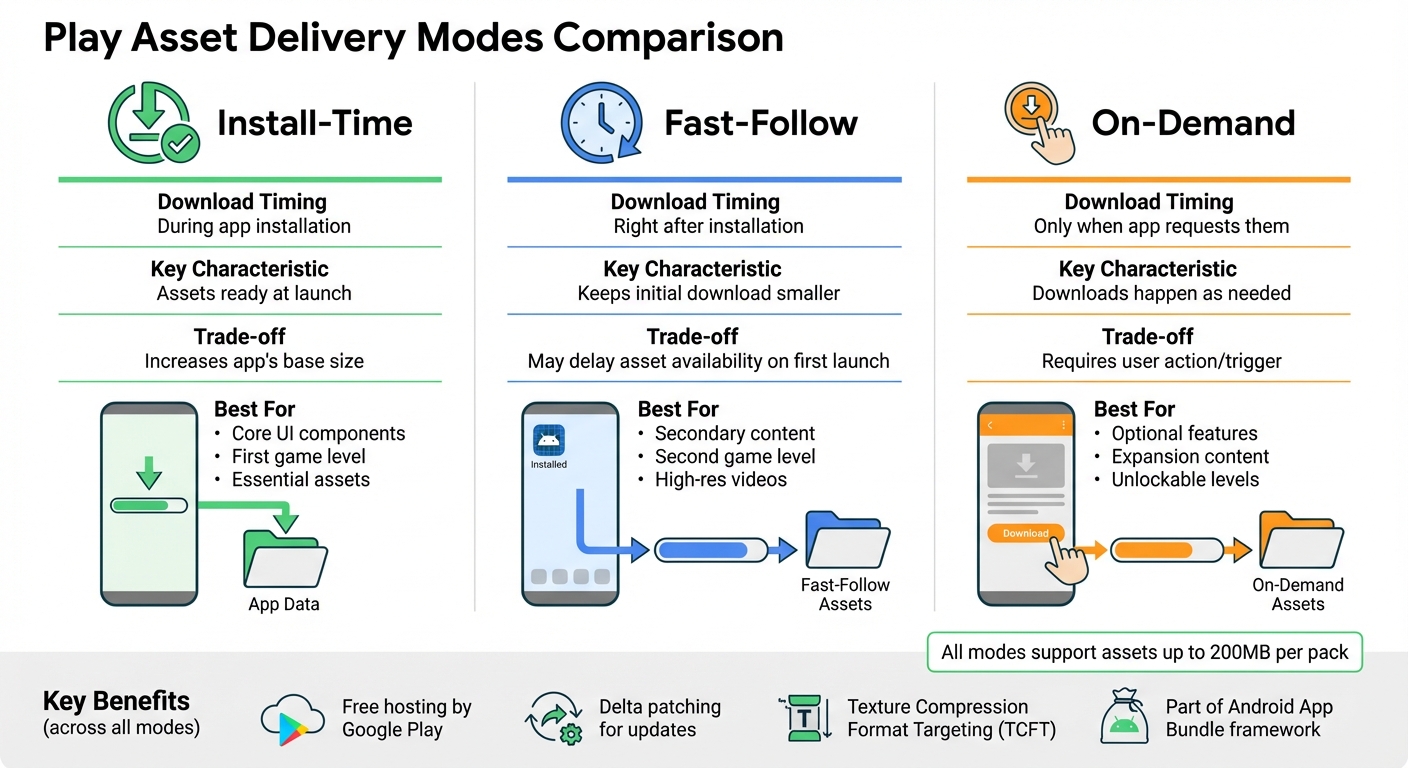
Play Asset Delivery Modes Comparison for Android Apps
Google came up with Play Asset Delivery (PAD) to simplify how developers handle large app assets. PAD is part of the Android App Bundle framework and makes it easier to manage apps that require several gigabytes of assets. Instead of cramming everything into a single 200 MB download – an outdated method that relied on expansion files – PAD allows developers to keep the initial download size small while offering the ability to add large assets later.
With PAD, assets like textures, shaders, and sounds are grouped into asset packs that don’t include executable code. These asset packs are hosted for free by Google Play, replacing the old OBB system and enabling developers to publish all their resources in a single package.
“Play Asset Delivery (PAD) brings the benefits of app bundles to games. It allows games larger than 200 MB to replace legacy expansion files (OBBs) by publishing a single artifact to Play containing all the resources the game needs.”
- Android Developers
Main Features of Play Asset Delivery
PAD’s standout features include its flexible delivery modes and advanced texture compression options. The delivery modes determine when and how assets are downloaded to a user’s device:
- Install-time: Assets are downloaded alongside the app and are ready to use immediately at launch. However, this increases the app’s initial size.
- Fast-follow: Assets begin downloading automatically after the app is installed, keeping the initial download smaller but possibly delaying asset availability on the first launch.
- On-demand: Assets are downloaded only when the app specifically requests them, minimizing the app’s initial size.
| Delivery Mode | Download Timing | Characteristics |
|---|---|---|
| Install-time | During app installation | Assets are ready at launch but increase the app’s base size. |
| Fast-follow | Right after installation | Keeps the initial download smaller but may delay asset availability. |
| On-demand | Only when app requests them | Downloads happen as needed, keeping the initial footprint minimal. |
Another standout feature is Texture Compression Format Targeting (TCFT). This allows developers to include multiple texture formats in a single bundle. Google Play then ensures users only download the texture format that matches their device’s hardware, cutting down on unnecessary downloads. Additionally, asset updates are handled efficiently with delta patching, so users only download changes, not entire files.
How Play Asset Delivery Works
PAD works seamlessly with the Android App Bundle publishing process. Developers organize assets into packs, assign each pack a delivery mode, and upload everything as a single bundle to Google Play. When users install the app, Google Play’s Dynamic Delivery system determines which asset packs to send based on the delivery modes configured by the developer.
For install-time packs, Google Play uses a feature called “Play as you Download.” This system prioritizes critical assets based on usage patterns, allowing users to start the app quickly while other assets download in the background. Fast-follow packs automatically begin downloading once the app is installed, whereas on-demand packs wait until the app triggers a download request using the Play Core API.
All hosting, bandwidth, and updates for PAD are handled by Google Play at no extra cost to developers.
Methods for Optimizing Asset Delivery
Getting asset delivery right can make a big difference in load times and app sizes. The trick is choosing the right delivery method based on when users need specific assets. There are three main options: install-time, fast-follow, and on-demand – each tailored for different scenarios.
Install-Time Packs
Install-time packs are perfect for assets that need to be ready the moment your app launches, like core UI components or the first level of a game. These assets are downloaded during installation and are immediately available once the app starts. The downside? A larger initial download. To keep this manageable, only include what’s absolutely necessary for the first-run experience. A smaller initial download is key to improving install conversion rates.
Fast-Follow Delivery
Fast-follow delivery kicks in right after installation, downloading additional assets in the background. This method balances a smaller initial download with the convenience of having secondary content – like the second level of a game or high-resolution videos – ready soon after launch. Users can start using your app while these assets quietly download in the background.
On-Demand Packs
On-demand packs give you total control over when assets are downloaded. These are fetched only when users take specific actions, like unlocking a new level or purchasing expansion content. This method works well for optional features or content that only a portion of users will access.
For example, CD Projekt RED used Play Asset Delivery for GWENT: The Witcher Card Game in 2020. This reduced update sizes by 90% and boosted update completion rates by 10%.
Important: Apps must disclose download sizes before starting any downloads. If the download exceeds 200 MB on mobile data, users must consent via a confirmation dialog, or the download will pause until Wi-Fi is available.
Setting Up Install-Time Asset Packs
To configure install-time packs, make sure you’re using Android Gradle plugin version 4.0.0 or higher. Create a directory for the asset pack at your project’s top level, then add a build.gradle file using the com.android.asset-pack plugin. In the assetPack block, set deliveryType to install-time. Next, include the asset pack in your app’s main build.gradle under android.assetPacks and reference it in your settings.gradle file. Place the necessary assets in the pack’s src/main/assets folder.
Once set up, these assets are ready at app launch and can be accessed through the standard AssetManager API. No need to worry about download states or network requests.
For assets that aren’t required at launch, fast-follow delivery is a better choice.
Using Fast-Follow Asset Delivery
To implement fast-follow, integrate the Play Asset Delivery Library into your app’s main build.gradle. After setting up the asset pack directory and marking its deliveryType as fast-follow, use the library’s AssetPackManager to manage download status and progress.
Before accessing fast-follow assets, confirm their availability with getPackLocation(). Use requestPackStates() to check the size and download state, then trigger the download with fetch() or requestFetch(). To keep users informed, implement an AssetPackStateUpdatedListener to track progress and notify them if the download is pending, active, or waiting for Wi-Fi.
Using On-Demand Asset Packs
On-demand packs are configured similarly, but their deliveryType is set to on-demand in the asset pack’s build.gradle. Downloads only begin when triggered by a user action, such as selecting a new level or buying extra content.
For instance, Devsisters used Play Asset Delivery for Cookie Run: OvenBreak to handle large game resources. This approach saved them over $200,000 in CDN costs while streamlining resource delivery.
When using on-demand packs, it’s crucial to monitor download states and provide users with clear progress updates to ensure a smooth experience.
sbb-itb-539ae66
Optimizing Asset Formats and Compression
Making your files smaller while keeping their quality intact is key to improving performance. By using efficient formats and compression, you can reduce asset sizes and speed up load times. Start with texture formats, then move on to compressing other assets.
Choosing the Right Texture Formats
Texture formats play a big role in both file size and rendering performance. Ericsson Texture Compression 2 (ETC2) is a solid choice – it works on over 95% of active Android devices (those with OpenGL ES 3.0+) and supports alpha channels. For even better results, Adaptive Scalable Texture Compression (ASTC) offers flexible block sizes, allowing you to find the right balance between image quality and file size. ASTC is supported by more than 80% of devices on Google Play.
To simplify delivery, Texture Compression Format Targeting (TCFT) helps by packaging multiple texture formats. This ensures that users download only the format their device needs. To set up TCFT, organize asset packs into directories with specific suffixes like #tcf_astc or #tcf_etc2. Always include a default directory (without a suffix) containing ETC2 textures to maintain compatibility across devices.
For static UI images, use WebP instead of JPEGs – it can cut file sizes by 25%–34%. For icons and simple graphics, consider VectorDrawable, which creates resolution-independent assets that can be as small as 100 bytes.
Compressing Your Assets
After choosing efficient formats, compression is the next step. Enable R8 and resource shrinking in your release configuration by setting minifyEnabled and shrinkResources to true . This removes unused code and resources, making your final package leaner.
For image compression, Android Studio has a built-in converter to transform PNG or JPEG files into the more efficient WebP format. This keeps transparency and quality intact while reducing file size . For further optimization, tools like pngcrush or zopflipng can perform additional lossless compression on PNG files. Additionally, the standard Android build process automatically applies lossless compression to PNGs in the res/drawable/ directory using the aapt tool.
Best Practices for Managing Asset Delivery
Once you’ve optimized asset formats and applied compression, the next step is ensuring smooth and efficient asset delivery. Proper management of this process is critical to avoid download failures and prevent storage issues.
Tracking Asset Pack Downloads
The Play Core API provides real-time tracking for asset pack downloads. If you’re using Unity, you can monitor progress with the DownloadProgress property, which returns a float value between 0.0 and 1.0 to indicate completion status. For native C++ projects, progress is calculated by comparing AssetPackDownloadState_getBytesDownloaded with AssetPackDownloadState_getTotalBytesToDownload.
To keep users informed, use the AssetDeliveryStatus enum to monitor the download state. This enum includes statuses like Pending, Retrieving, WaitingForWifi, and Failed. Downloads larger than 200 MB on mobile data will pause automatically and switch to the WaitingForWifi state. In such cases, you’ll need to prompt users with a consent dialog to continue. Before starting downloads, call GetDownloadSize() to display the download size to users.
For native integrations, refresh your UI by calling AssetPackManager_getDownloadState() each frame. Keep an eye on errors using AssetDeliveryErrorCode (e.g., NetworkError, InsufficientStorage) and provide clear feedback to users. Once assets are no longer needed, free up storage by removing asset packs with RemoveAssetPack().
By implementing these tracking practices, you can ensure a smoother asset delivery experience. Once tracking is set up, the focus can shift to managing updates for your asset packs.
Updating Asset Packs
Play Asset Delivery (PAD) uses delta patching to update only the portions of assets that have changed, significantly reducing update sizes.
“Play Asset Delivery (PAD) brings the benefits of app bundles to games… PAD offers flexible delivery modes, auto-updates, compression, and delta patching.” – Android Developers
To maintain performance during background updates, move any heavy I/O operations off the main thread. Only load the assets immediately required for the current user experience, such as an active level or menu, instead of preloading entire asset packs. Additionally, set useLegacyPackaging to false in your build.gradle file. This ensures uncompressed .so files are packaged correctly, avoiding unnecessary copying by the PackageManager during installation and minimizing update sizes.
For testing updates, use internal app sharing links, as local tools like bundletool don’t support update testing. This ensures your update flow is thoroughly validated before release.
Conclusion
Improving how assets are delivered can significantly enhance both app performance and user experience. With Play Asset Delivery, you can say goodbye to outdated expansion files and embrace the convenience of a single Android App Bundle for all your resources. Its flexible delivery options – install-time, fast-follow, and on-demand – give you control over how and when assets are downloaded. This means quicker launches and smaller initial downloads, as covered earlier in this guide. These tools help you keep your app lean and responsive.
Optimizing asset formats and applying compression techniques also play a key role. For instance, Texture Compression Format Targeting (TCFT) ensures that devices only download compatible texture formats. Meanwhile, delta patching focuses updates on the specific parts of an asset pack that have changed, saving both storage space and bandwidth.
There’s a financial upside, too. Google Play hosts and serves all asset packs for free, eliminating the expense of using third-party content delivery networks. By leveraging these methods – selecting the right delivery modes, fine-tuning asset formats, and streamlining updates – you can reduce costs and deliver a smoother, faster experience for your users.
FAQs
What are the advantages of using Play Asset Delivery instead of traditional expansion files?
Play Asset Delivery transforms the way assets are managed by moving away from outdated OBB expansion files to a streamlined app-bundle-based system. With this setup, there’s no need for a separate CDN – assets can be downloaded during installation, shortly after, or only when required.
This system also brings several perks, like automatic updates, efficient compression, delta patching, and texture-compression targeting. These tools not only shrink app sizes but also speed up load times, creating a smoother experience for users while helping developers keep their costs in check.
What is Texture Compression Format Targeting, and how does it improve asset delivery in Android apps?
Texture Compression Format Targeting lets you include different GPU-specific texture formats within your app. With this feature, Google Play identifies the user’s device and delivers only the texture format that works best for their hardware. The result? Smaller download sizes and quicker load times, giving users a smoother and more efficient experience.
This approach ensures your app runs well across a variety of devices while keeping its size manageable.
What’s the best way to choose between install-time, fast-follow, and on-demand asset delivery modes for Android apps?
Choosing the right Play Asset Delivery mode depends on how and when your app needs specific assets. Here’s a breakdown of the three delivery modes and when to use them:
- Install-time delivery: This is perfect for critical files like core textures, essential UI elements, or sound files that your app needs to launch and run smoothly from the start. These assets are included in the initial download to ensure users have a seamless first experience.
- Fast-follow delivery: Use this for assets that users might need soon after launching the app, such as extra levels, language packs, or secondary game worlds. These files download in the background after installation, so they’re ready when users advance further into the app.
- On-demand delivery: Ideal for optional or large files like premium content, high-resolution graphics, or region-specific media. These assets are only downloaded when the app specifically requests them, helping users save storage and bandwidth for content they might not need.
By matching the delivery mode to the importance and timing of your assets, you can keep your app size smaller, improve loading times, and create a smoother user experience. For developers using AppInstitute’s no-code platform, these strategies can be easily applied by categorizing assets as install-time, fast-follow, or on-demand based on their role in the app.
Related Blog Posts
- How To Optimize PWA For Mobile Performance
- Ultimate Guide to Faster Drag-and-Drop App Development
- How To Optimize Images for No-Code Apps
- Why Deployment Metrics Matter for Mobile Apps
Last Updated on January 5, 2026 by Becky Halls
0 thoughts on “How To Optimize Asset Delivery For Android Apps”