Want your Progressive Web App (PWA) to rank higher in search results and attract more users? Here’s the deal: PWAs combine the best of websites and apps but need proper SEO to shine. If your PWA isn’t optimized, you’re likely losing traffic and missing out on conversions.
Key Takeaways:
- Why it matters: Over 50% of website traffic comes from organic search, and 80% of retail visits are on smartphones. PWAs can be discovered via search engines, unlike native apps restricted to app stores.
- Success stories: Lancôme boosted conversions by 17%, Spotify saw a 46% increase in free-to-paid conversions, and JD.ID improved mobile conversion rates by 53% using PWA strategies.
- What to do:
- Set up a Web App Manifest for installability and branding.
- Use a service worker for caching and offline functionality.
- Ensure your app runs on HTTPS for security and SEO.
- Optimize for search engine crawlers with clean URLs, XML sitemaps, and server-side rendering.
- Nail on-page SEO with unique metadata, canonical tags, and semantic HTML.
- Improve performance by optimizing Core Web Vitals like LCP, INP, and CLS.
This guide breaks down everything you need to ensure your PWA is fast, searchable, and user-friendly. Let’s dive in and make your PWA stand out!
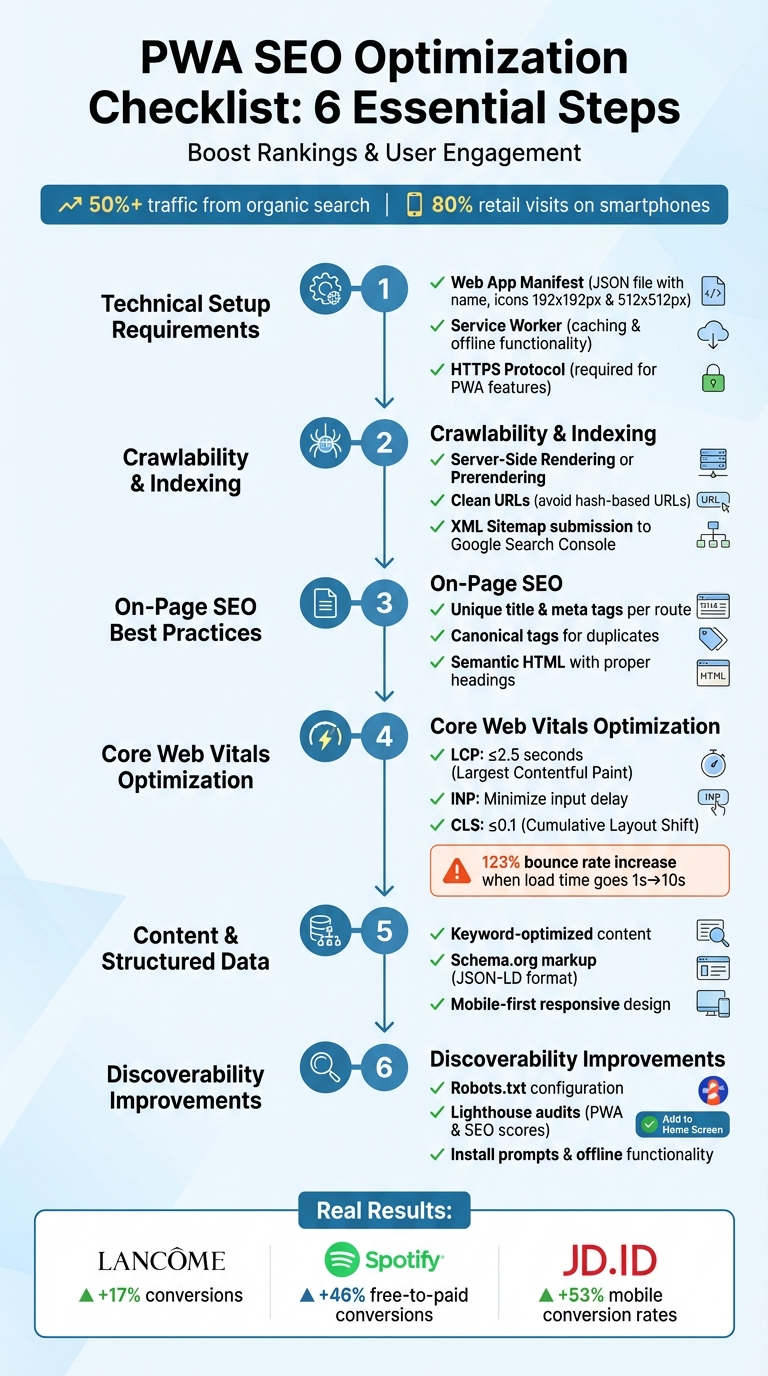
PWA SEO Optimization Checklist: 6 Essential Steps for Better Rankings
Indexing your PWA (Discoverability & SEO) – Progressive Web App Training

Technical Setup Requirements
Getting your Progressive Web App (PWA) ready for action involves meeting a few essential technical requirements. These aren’t optional add-ons – they’re the core building blocks that ensure your app functions properly and ranks in search results.
Set Up Web App Manifest
The web app manifest is a JSON file that plays a critical role in making your app installable. It defines key properties like name or short_name, start_url, display mode (either standalone or fullscreen), and icons (at least 192x192px and 512x512px). To link it, add <link rel="manifest" href='/app.webmanifest'> to your HTML’s <head> and serve it with a Content-Type: application/manifest+json header.
Here are some tips to optimize your manifest:
- Keep the
short_nameunder 12 characters to avoid truncation on home screens. - Add a
descriptionto help search engines understand your app and enhance the installation dialog on Android. - Include
screenshotsto showcase your app during installation. - Use a
theme_colorto create a seamless transition by coloring the browser’s address bar.
For unique identification, use the id field. If you skip this, the browser defaults to the start_url, which can cause issues if your URL structure changes later. Also, define a scope to specify which pages stay within the PWA experience – links outside this scope will open in a standard browser tab.
To ensure proper icon display across Android’s varied shape masks (circles, squares, squircles), include maskable icons. Specify the purpose as "maskable" and maintain a 40% safe zone. Provide icons in multiple sizes: 192x192px, 384x384px, and 512x512px.
With your manifest configured, the next step is setting up a service worker to handle caching and offline functionality.
Configure Service Worker for Caching
Service workers act as a middleman between your app and the network, allowing you to cache content and serve it offline. This improves load times and ensures your app remains functional even when users lose their connection. Considering bounce rates increase by 123% when page load times jump from one to ten seconds, this is a must.
Here’s how to set it up:
- Register the service worker in your main JavaScript file during the
window.loadevent, but first check if'serviceWorker'is supported innavigator. - During the install phase, precache core assets like
index.html, CSS, and JavaScript files. - In the activation phase, clear outdated caches.
- For the fetch phase, use a cache-first strategy for static files (e.g., fonts, stylesheets, images) and a network-first strategy for dynamic content like news feeds or user data.
Always include a custom offline page to replace the browser’s generic “no internet” message. Use versioned cache names (e.g., const cacheName = 'v1') to make updates easier. Test your caching strategy using Chrome DevTools. Toggle “Offline” mode in the Application tab to confirm your app still serves a 200 status code.
Once your caching is in place, secure your app with HTTPS to meet browser and SEO standards.
Enable HTTPS Protocol
HTTPS is non-negotiable. Without it, critical features like service workers and install prompts won’t work, and browsers like Chrome will disable events like beforeinstallprompt. Worse, users may see security warnings that can drive them away [6,13].
To enable HTTPS:
- Obtain an SSL certificate and configure your server to redirect all HTTP traffic to HTTPS.
- Use tools like Lighthouse in Chrome DevTools to confirm your network connection is secure. Lighthouse audits also flag PWAs that fail to use HTTPS or improperly handle HTTP redirects [6,12].
HTTPS doesn’t just unlock PWA features – it’s also a confirmed ranking factor for search engines. If you’re using a no-code platform like AppInstitute, HTTPS is often preconfigured, simplifying the process and ensuring your app is ready to go from day one.
Crawlability and Indexing
Once your technical setup is in place, the next step is ensuring that search engine crawlers can effectively discover your PWA. With over half of all website traffic coming from organic search, proper indexing is vital for making your app visible to users. A strong foundation includes proper rendering and clean URL structures to improve indexing.
Use Server-Side Rendering or Prerendering
Client-Side Rendering (CSR) can slow down indexing because it initially outputs empty HTML, requiring JavaScript to fill in the content. On the other hand, Server-Side Rendering (SSR) delivers fully rendered pages right away. This means crawlers immediately see the complete page, including text, links, and metadata, without needing to execute JavaScript during the crawl. While SSR is best for the initial page load, CSR can still be used for subsequent navigation to enhance user experience.
To check how crawlers perceive your PWA, tools like Google Search Console’s URL Inspection feature let you compare what Googlebot renders versus what users see. Regular Lighthouse SEO audits are also useful for spotting rendering issues before they affect search rankings. If implementing SSR is too complex, dynamic rendering is an alternative. This method serves fully rendered HTML to bots while allowing users to navigate with CSR. It’s a practical solution that caters to both crawlers and users.
Avoid Hash-Based URLs
Hash-based URLs (e.g., example.com/#/products/shoes) can hinder indexing because search engines ignore everything after the #. As a result, individual pages like product listings may not be indexed properly.
Switching to the HTML5 History API solves this problem by creating clean URLs (e.g., example.com/products/shoes) without triggering a full page reload. Each view should have a unique, crawlable URL, ensuring that search engines can index them as separate pages. Also, make sure your server supports direct navigation to these URLs – typing /products/shoes should load the correct content instead of redirecting to the homepage.
Reserve # for on-page anchors only. Clean URLs are not just better for SEO; they also improve social media sharing, where hash-based URLs often break. Just as caching and manifest configuration are essential for a smooth PWA experience, a well-structured URL is key for effective indexing.
Submit XML Sitemap to Google Search Console
An XML sitemap is a must-have for listing every unique URL in your PWA. Submit it through Google Search Console. This tool helps you identify indexing issues, showing which pages have been indexed and flagging any that aren’t.
Additionally, double-check your robots.txt file to ensure it isn’t blocking critical resources like JavaScript, CSS, or third-party files needed for rendering. Properly configured sitemaps and robots.txt settings ensure that crawlers can fully understand and index your PWA.
On-Page SEO Best Practices
After handling technical and indexing optimizations, it’s time to focus on on-page SEO elements that help search engines and users understand your content. Elements like titles, meta descriptions, and proper HTML structure play a major role in determining how search engines rank your pages. Considering that over 50% of all website traffic comes from organic search, nailing these basics is crucial for boosting your visibility. With a solid foundation for crawlers, these on-page strategies can take your PWA’s ranking to the next level.
Add Unique Title and Meta Tags per Route
Each route in your PWA should have its own unique, keyword-rich title and meta description. Search engines treat every URL as a distinct page, so duplicate or generic metadata across routes can hurt your rankings. As web.dev emphasizes:
“Ensure that each URL has a unique, descriptive title and meta description”.
Single Page Applications (SPAs) often face challenges here because JavaScript updates content dynamically, sometimes without updating metadata. To address this, dynamically update titles and meta descriptions whenever the route changes. Use hybrid rendering to ensure the server delivers fully-rendered HTML for the initial request, so bots can immediately access complete metadata without waiting for JavaScript execution.
In addition to standard SEO tags, consider adding Open Graph and Twitter Card tags for each route to enhance social sharing. You can also use Schema.org structured data to help search engines better understand the purpose of your pages. Regular Lighthouse SEO audits can help you identify missing meta descriptions or non-descriptive link text. Also, use Google Search Console to confirm that Googlebot correctly renders unique metadata for different routes. Be cautious when using service workers, as they might cache generic metadata and serve it across multiple routes, negating the benefits of unique tags.
With unique metadata in place, tackle duplicate content issues by implementing canonical tags.
Implement Canonical Tags for Duplicates
PWAs often coexist with traditional websites, which can lead to the same content being available on multiple URLs. This “content crossover” can confuse search engines about which version to prioritize.
Canonical tags are the solution. These tags tell search engines which URL is the primary version of a page. Google Search Central advises:
“The best way to eliminate confusion for indexing when the same content is available under multiple URLs (be it the same or different domains) is to mark one page as the canonical, and all other pages that duplicate that content to refer to it”.
Include a canonical link element in the head section of your pages, such as <link rel="canonical" href="https://www.example.com/page/" />, to establish the authoritative version. This is particularly important for URLs with tracking parameters or session IDs. Before moving from development to production, double-check that canonical tags point to the live site instead of staging URLs. Pair canonical tags with the HTML5 History API to create clean, unique URLs for different views, and avoid situations where pages mistakenly point to each other as canonical sources.
To further strengthen your SEO foundation, use semantic HTML to clarify content structure.
Use Semantic HTML with Proper Headings
Semantic HTML elements like <form>, <button>, and <a> aren’t just good coding practices – they’re essential for both SEO and accessibility. These elements naturally support various user interactions (keyboard, mouse, touch, stylus) without requiring additional scripting. They also help search engines understand the hierarchy and purpose of your content.
As web.dev puts it:
“It’s also important to use semantically correct elements instead of recreating those elements on your own, such as
<a>and<button>elements. This ensures that when you do need to build more advanced features, accessibility expectations are met”.
Stick to native semantic elements rather than non-semantic alternatives. Use proper heading structures (<h1>, <h2>, <h3>) to signal the importance of content to both crawlers and screen readers. Ensure key information is highlighted with appropriate heading levels. If your PWA relies heavily on JavaScript, consider server-side rendering to make sure the semantic structure is immediately visible to search engine bots.
sbb-itb-539ae66
Performance and Core Web Vitals
Once your on-page elements are in good shape, it’s time to focus on performance metrics that directly influence both user experience and search rankings. Google’s Core Web Vitals – Largest Contentful Paint (LCP), First Input Delay (FID), and Cumulative Layout Shift (CLS) – are key indicators that Google uses as ranking signals. Poor performance can drive users away in droves. For instance, when page load times increase from one second to ten seconds, bounce rates skyrocket by 123%. For PWAs aiming to deliver an app-like experience, achieving strong scores in these metrics is critical. These benchmarks ensure your site is not just optimized for search engines but also for speed and responsiveness.
Fast page rendering plays a huge role in keeping users engaged and improving your search rankings.
Optimize for Largest Contentful Paint
LCP measures how long it takes for the largest visible image or text block to load in the viewport after a user starts loading the page. To provide a smooth experience, aim for an LCP score of 2.5 seconds or less for at least 75% of page visits. According to the 2024 Web Almanac, 73% of mobile pages have an image as their LCP element, which underscores the importance of optimizing images.
Several factors influence LCP, including Time to First Byte (TTFB), load delays, and rendering delays. Ideally, most of the LCP budget should be spent delivering the HTML document and critical resources, minimizing any unnecessary delays. On pages with poor LCP, image loading alone contributes an average delay of 1,290 milliseconds – eating up more than half of the time budget for a good user experience.
To address these delays:
- Include the LCP resource in the initial HTML markup.
- Avoid lazy-loading or deferring critical images. Use standard
<img>tags with propersrcorsrcsetattributes. - Add
fetchpriority="high"to the LCP image to signal browsers to prioritize it. - Use server-side rendering (SSR) or Static Site Generation (SSG) to ensure the full page markup and image URLs are immediately available.
- Reduce resource sizes by switching to modern formats like AVIF or WebP.
- Break up long tasks that block rendering.
Minimize First Input Delay
First Input Delay (FID) has now been replaced by Interaction to Next Paint (INP), which measures input delay more effectively. For PWAs, responsiveness is non-negotiable – users expect actions to register instantly and interactions to feel seamless.
Long tasks exceeding 50 milliseconds can block the main thread, creating delays. To address this:
- Use
scheduler.yield()and code splitting to reduce task durations. - Leverage Chrome DevTools’ coverage tool to find and eliminate unused code, ensuring only essential scripts load during the initial render.
- Batch DOM reads and writes to prevent layout thrashing.
- Apply CSS containment to isolate complex layout updates.
- Regularly audit tag managers to remove outdated tags.
- Conduct Lighthouse audits to monitor input latency and identify script bottlenecks.
Reduce Cumulative Layout Shift
Cumulative Layout Shift (CLS) measures unexpected layout changes that occur while a page loads. For a smooth experience, aim for a CLS score of 0.1 or less. Since CLS is a Google ranking factor, maintaining layout stability can improve rankings and reduce bounce rates. However, only 46% of mobile sites and 47% of desktop sites currently meet Google’s CLS standards.
Common causes of layout shifts include unsized images or videos, dynamically resizing ads or embeds, late-loading CSS, and web fonts that cause flashes of unstyled or invisible text. For instance, 66% of web pages feature at least one unsized image, a major contributor to layout instability.
To minimize CLS:
- Always define
widthandheightattributes for<img>and<video>elements so browsers can allocate space in advance. - Use the CSS
aspect-ratioproperty to ensure layout stability. - Reserve space for third-party ads and embeds with placeholders or skeleton UIs. For multi-size ad slots, allocate space for the largest possible size.
- Optimize font loading with preload links and proper
font-displaysettings to prevent layout shifts. - Avoid animating properties like
top,left, ormargin, which trigger layout reflows. Instead, usetransform: translate()for smoother animations handled by the compositor.
Content and Structured Data
If you’re creating a Progressive Web App (PWA) with a no-code platform like AppInstitute, structuring your content effectively for search engines can significantly boost organic visibility. With over half of all website traffic coming from organic search, getting your content and structured data right is crucial. By combining keyword-optimized content, structured data markup, and a mobile-first design, your PWA can rank higher in search results and attract more clicks.
Create Keyword-Optimized Content
Make sure every dynamically generated page in your PWA has a unique, crawlable URL. Each page should also feature a distinct title tag and meta description that include your target keywords.
Use clean, descriptive URLs that align with user intent. Targeting long-tail keywords tailored to specific user needs can often lead to less competition and better conversion rates. Stick to standard HTML elements like <a> and <button> instead of JavaScript-only components to ensure search engine crawlers can navigate your site structure effectively.
To confirm your content is being indexed, try using Google’s site:[URL] "[text]" search operator. This can help you verify that dynamically rendered text is appearing in search results.
Add Schema Markup for App and Pages
Structured data is a powerful tool to help search engines understand the purpose and context of your PWA pages. Use Schema.org markup in the JSON-LD format – Google’s preferred method – to clearly define the type of content on each page. You can also add specific schema types, such as product reviews, ratings, and prices, to enable rich snippets in search results.
For better social sharing, include Open Graph and Twitter Card metadata.
Before going live, validate your schema implementation using tools like Google’s Structured Data Testing Tool or Lighthouse’s SEO audits. This step ensures there are no errors that could hurt your search visibility.
Ensure Mobile-First Responsiveness
A mobile-first approach is essential not just for user engagement but also for SEO. Your PWA must adapt seamlessly to all screen sizes, as users access apps from a variety of devices and may switch between different viewport sizes on the same device. Google prioritizes mobile-friendly designs, making it a must for proper indexing and discoverability. Pairing structured data with a mobile-ready design enhances both rich search results and user experience.
Include a <meta name="viewport" content="width=device-width, initial-scale=1"> tag to ensure proper scaling across devices. Make sure all elements fit within mobile screens to avoid horizontal scrolling. Additionally, design your PWA to support multiple input methods – touch, stylus, mouse, and keyboard – across all devices.
“Mobile devices require software development teams to focus on only the most important data and actions in an application. There simply isn’t room in a 320 by 480 pixel screen for extraneous, unnecessary elements. You have to prioritize.” – Luke Wroblewski
Use Google Lighthouse to check if your PWA meets mobile-friendly standards. Look for issues like “Content is not sized correctly for the viewport”. Keep in mind that 70% of users will leave a site if it takes more than 5 seconds to load on a mobile device. Ensuring fast loading times and optimal responsiveness is non-negotiable for success.
Discoverability Improvements
After you’ve tackled technical and on-page optimizations, these final tweaks ensure your Progressive Web App (PWA) is both discoverable and user-friendly. By building on your content and structured data efforts, these steps make your PWA accessible to search engines and users alike. These checks could be the difference between a PWA that goes unnoticed and one that consistently draws organic traffic and engaged users.
Set Up Robots.txt Correctly
The robots.txt file acts like a rulebook for search engine crawlers, directing them on which parts of your PWA they can access. This file should live in your domain’s root directory (e.g., https://www.example.com/robots.txt) and is case-sensitive, so double-check the file name. Avoid blocking JavaScript, CSS, or critical third-party APIs, as search engines depend on these to render and index your content accurately. Add your XML sitemap (e.g., Sitemap: https://www.example.com/sitemap.xml) to help crawlers discover all your pages. If you need to block certain directories for security reasons, use the Allow directive to make specific essential files accessible (e.g., Allow: /private/app-logic.js). To avoid duplicate content issues, you can block URLs with query parameters (e.g., Disallow: /_?_).
“The robots.txt is the most sensitive file in the SEO universe. A single character can break a whole site.” – Kevin Indig, Growth Advisor
Use the URL Inspection tool in Google Search Console to test your setup and ensure no critical resources are being blocked. Remember, Google caches robots.txt files for up to 24 hours, so changes may take time to take effect. Regularly auditing your file, especially after deployments, can help you catch misconfigurations, like accidentally blocking your entire site.
Test with Lighthouse for PWA and SEO Scores
Google’s Lighthouse tool is a powerful resource for auditing both PWA functionality and SEO performance. You can access it through Chrome DevTools (under the Lighthouse tab), PageSpeed Insights, or as a Chrome extension. For the most accurate results, run audits in incognito mode.
When performing an audit, select the “Progressive Web App” and “SEO” categories. The PWA category evaluates technical elements like service worker registration and the Web App Manifest, while the SEO category ensures search engines can crawl and understand your content. If any issues arise, Lighthouse provides links to detailed documentation and fixes. Don’t overlook the “Additional items to manually check” section, which highlights factors like cross-browser compatibility and structured data validity.
Check that your Web App Manifest includes a valid start_url, a display mode set to standalone, and properly sized icons (e.g., at least 192px and 512px). Once the audit is complete, review your install prompts and offline functionality to ensure a seamless user experience.
Verify Install Prompts and Offline Functionality
For your PWA to be installable, it must meet a few key requirements: it needs to be served over HTTPS, have a properly configured Web App Manifest, and register a service worker. To enhance the installation experience, listen for the beforeinstallprompt event and provide an in-context “Install” button instead of relying on the browser’s default prompt.
You can improve the install prompt by adding descriptions and screenshots in your manifest. On Android, these extras create a richer installation user interface, which can encourage users to install your app. Avoid triggering install prompts immediately on page load; instead, wait until users are actively engaged.
Additionally, create a custom offline page and ensure core features remain functional even without an internet connection. You can test offline functionality using the Application tab in Chrome DevTools while in offline mode.
“Installing a Progressive Web App lets it look, feel, and behave like all other installed apps… users who install your apps are your most engaged audience.” – web.dev
Run regular Lighthouse PWA audits to confirm that your start_url returns a 200 status code when offline and that your manifest meets all technical requirements. Lastly, make sure every section of your PWA has its own unique URL. This enables search engines to index your content properly and allows users to share specific pages easily.
Conclusion
Improving your Progressive Web App (PWA) is not a one-time task – it’s a continuous process that helps boost traffic, engagement, and retention. By following this checklist, you’re laying a solid technical groundwork that ensures your PWA is installable and dependable. At the same time, refining on-page elements helps search engines better understand your content, while performance tweaks keep users engaged. Together, these efforts create a strong base for both immediate results and sustained growth.
“Progressive Web Apps (PWAs) are web apps built and enhanced with modern APIs to deliver enhanced capabilities, reliability, and installability while reaching anyone, anywhere, on any device with a single codebase.” – Pete LePage and Sam Richard, web.dev
Optimizing rendering techniques and adhering to URL best practices can significantly improve your app’s visibility. Installed PWAs often achieve engagement levels that rival native apps, making proper optimization a critical factor in user satisfaction and behavior.
As you continue to develop and update your PWA, revisit this checklist to ensure everything stays on track. Test every update for both SEO performance and user experience. Use tools like Lighthouse audits to measure progress, verify offline functionality by going completely offline, and confirm that your PWA works smoothly across different browsers and devices. Regular testing like this ensures your app remains aligned with evolving SEO standards and user expectations.
For even broader reach, consider packaging your PWA for distribution in app stores like Google Play, Microsoft Store, or Apple App Store using tools such as PWABuilder. This step not only enhances your app’s visibility online but also expands its accessibility through app store platforms. With a well-thought-out technical setup and consistent updates, your PWA can compete head-to-head with native apps.
If you’re looking to simplify development while maintaining these SEO practices, platforms like AppInstitute’s no-code solution make it easy to build and optimize professional PWAs that attract organic traffic and keep users coming back.
FAQs
How can I make sure my PWA is properly indexed by search engines?
To make sure your Progressive Web App (PWA) gets indexed properly, start by using HTTPS for all pages and confirming that your service worker is correctly registered. It’s crucial that both the page URL and the start_url specified in your Web App Manifest return a 200 status. The manifest itself should be complete, including details like icons, theme_color, display mode, and a valid, accessible start_url.
Your app’s core content must be rendered in HTML so search engines can easily crawl it. If your PWA relies heavily on JavaScript, think about using server-side rendering or pre-rendering to make critical content accessible to search bots. Don’t forget key SEO elements like meta tags (title, description, canonical URL) and structured data to help search engines understand your content. Additionally, submit a precise XML sitemap and double-check that your robots.txt file doesn’t block important pages or URLs managed by your service worker.
If you’re working with AppInstitute, the platform simplifies much of this process for you. It automatically configures HTTPS, generates a valid manifest, and makes it easy to add meta tags and structured data. Once your PWA is live, use tools like Google Search Console to verify that your pages are being indexed correctly. Keep an eye on your app’s performance and quickly resolve any crawlability issues that arise.
What are the key steps to optimize a PWA for better SEO performance?
Improving your Progressive Web App (PWA) for SEO starts with boosting its performance. Start by reducing and splitting JavaScript files so only the most critical code is loaded upfront. Incorporate lazy loading to delay non-essential resources and set up smart service-worker caching to pre-cache key assets, ensure offline functionality, and speed up loading times.
Make sure to optimize media files by compressing images, using modern formats like WebP or AVIF, and serving responsive versions tailored to different screen sizes. Address render-blocking resources by deferring unnecessary CSS and JavaScript, and prioritize loading content that users see first, such as above-the-fold content.
Keep an eye on your PWA’s performance with tools like Google Lighthouse or PageSpeed Insights. Regularly check real-world metrics to spot problem areas and keep your app running smoothly. By prioritizing speed, reliability, and a great user experience, you’ll make your PWA more visible to search engines and more appealing to users.
Why is HTTPS essential for a PWA’s functionality and search rankings?
When it comes to Progressive Web Apps (PWAs), HTTPS isn’t optional – it’s essential. Modern browsers demand secure connections to unlock critical features like service workers, offline functionality, and the ability to install the app. Without HTTPS, these features simply won’t work, significantly hindering the PWA’s performance and overall user experience.
On top of that, Google uses HTTPS as a ranking signal in search results. If your PWA isn’t served over HTTPS, it could struggle to rank well, making it harder for users to find. In short, serving your PWA over HTTPS is a non-negotiable step for ensuring both its functionality and visibility.
Related Blog Posts
- How To Optimize PWA For Mobile Performance
- How To Optimize PWAs for Search Engines
- Checklist for PWA Performance Before Deployment
- Checklist for Optimizing PWA Caching Strategies
Last Updated on January 13, 2026 by Becky Halls
0 thoughts on “Checklist for PWA SEO and Discoverability”