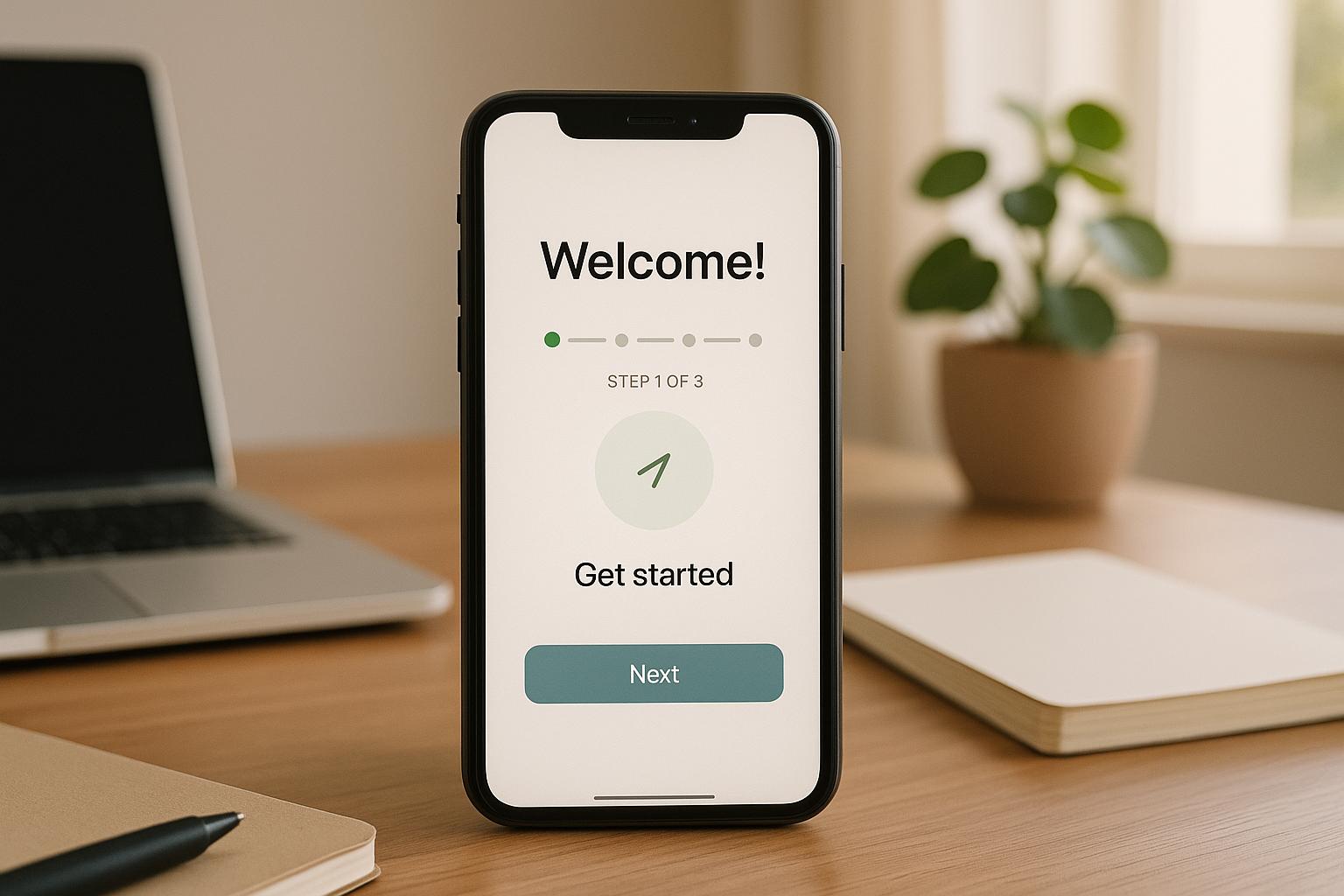
Want to keep users engaged with your app? Start with mobile app onboarding. Research shows that 21–25% of users abandon apps after one use, but a strong onboarding process can cut churn by up to 50%. For small businesses with limited budgets, this is a game-changer!
Here’s the deal: mobile app onboarding should be simple, fast, and focused on showing value. From reducing signup barriers to using interactive guides, these 10 tips will help you turn first-time users into loyal customers:
- Make signup easy: Use social logins, minimal fields, or a “Skip” option.
- Show your app’s value immediately: Use a clear headline and visual on the first screen.
- Focus on one key action: Guide users to complete a main task like placing an order.
- Personalize lightly: Ask for just enough info to tailor the experience.
- Use interactive guides: Replace long tutorials with quick, actionable tips.
- Design for mobile: Prioritize thumb-friendly navigation and concise text.
- Build trust: Highlight reviews and explain permissions clearly.
- Explain permissions with benefits: Show why notifications or location access helps users.
- Track progress: Use checklists and celebrate small wins to keep users motivated.
- Measure and improve: Use analytics to identify drop-offs and refine the process.
Every step matters. With tools like no-code platforms, even small businesses can create professional, user-friendly onboarding flows without coding skills. Start small, test often, and focus on making the first moments count.

10 Mobile App Onboarding Tips for Small Businesses
Onboarding Best Practices from 200+ Top Apps!

1. Reduce Signup Barriers
One common misstep small businesses make is requiring users to create an account before showing any value. Mobile users crave speed – if the signup process feels like a hurdle, they’ll likely leave your app before even giving it a chance.
To make things easier, start by offering social login options like Google or Apple Sign In. These options significantly cut down signup time. TikTok nails this approach: users can explore endless videos without an account, and the app only nudges them to register when they want to save content or customize their feed. By the time registration is required, users are already hooked, reducing early drop-offs.
If you do need to collect information upfront, keep it minimal – ask for just the essentials, like an email and password. Every extra field you add increases the likelihood of users abandoning the process. Typing on small mobile screens isn’t fun, so save additional questions for later. Use optional welcome surveys or progressive profiling to gather more details once users have already engaged with your app’s main features.
Another effective strategy is to include a “Continue as Guest” or “Skip” option on your landing screen. Let users dive into 80% of your app’s functionality right away, reserving advanced features – like saving data or syncing across devices – for registered accounts. Once users see the value your app provides, they’ll be more inclined to sign up.
For small businesses, tools like AppInstitute make this process even simpler. No-code platforms like this come with built-in social login integrations and customizable onboarding flows. You can easily set up guest modes and delayed signup prompts using drag-and-drop tools, ensuring your app aligns with user expectations without needing extensive development resources.
2. Communicate Your App’s Purpose on the First Screen
The first screen of your app needs to answer one critical question: “What does this app do for me?” Mobile users make snap decisions about whether to stick around or abandon the app, so it’s crucial to clearly communicate your app’s main benefit right away. This initial clarity sets the tone for the rest of the onboarding experience.
Start with a short, benefit-driven headline – something between 10 and 20 words – that highlights the outcome users care about most. Keep the language simple and direct. For example, a restaurant app might say, “Order pickup in a few taps”, while a salon app could state, “Book appointments anytime.” These concise statements immediately tell users what they can achieve and why it matters to them.
Pair your headline with a single, clear visual. This could be an illustration or a simple mockup that reinforces your app’s purpose. For instance, an image of someone tapping “Order” with a takeout bag or a clean view of an appointment calendar can quickly convey your app’s functionality. Avoid cluttered screenshots or visuals with small text – they can overwhelm users and make it harder to understand your message. On mobile screens, simplicity and focus are key to making a strong impression.
To build on your app’s promise, ensure the primary action on the screen leads users directly into the experience. Your main call-to-action button should reflect the benefit you’re offering. Instead of generic labels like “Next” or “Continue”, opt for action-oriented phrases like “Start an Order”, “Book Your First Appointment”, or “Browse Deals.” This button reinforces your app’s purpose and guides users toward experiencing its value. If you need a secondary option, like “Sign In”, make it less prominent – use an outline button or a text link to avoid overwhelming new users with too many choices.
For small businesses using AppInstitute, this process is made even easier. Their platform offers industry-specific templates that are already designed with a central value message and primary action in mind. With the drag-and-drop editor, you can edit headlines, swap images, and customize button labels – no coding required. This way, you can fine-tune your app’s first screen until its purpose is crystal clear to your audience.
3. Guide Users to One Primary Action First
Once users understand what your app offers, steer them toward completing one key action that highlights its value. This “activation event” is a pivotal moment – giving users a quick win can encourage them to keep coming back. By focusing on this single, impactful task, you deliver on the app’s initial promise without overwhelming them.
Keep things simple. Eliminate distractions and direct users to complete this core task. For instance, a restaurant app might encourage users to place their first order right away. Linking this action to your app’s main benefit ensures new users aren’t bogged down with unnecessary features, settings, or complex menus early on.
Make this process clear and actionable with a single, standout call-to-action. Use specific, action-driven labels like “Place Your First Order” or “Book an Appointment Now” rather than vague options like “Get Started.” To further guide users, include short tooltips or progress prompts that assist without requiring a lengthy tutorial.
To measure how effective your onboarding is, track users from installation to this core action. If many drop off before completing it, consider simplifying or tweaking the flow. Platforms like AppInstitute make this process easier for small businesses. Their industry-specific templates are designed around common primary actions – whether it’s placing an order, booking a service, or engaging with loyalty programs. With a drag-and-drop editor, you can customize the experience to spotlight that one key task. Add push notifications to follow up and personalize the journey – all without needing coding expertise.
Once users complete the first action, reinforce it with a thoughtful follow-up. For example, after placing their first order, send a timely push notification thanking them and suggesting a reorder or inviting them to explore new menu items. This small step can help transform a one-time action into a lasting habit.
4. Personalize the Experience with Minimal User Input
Personalization can make your app feel relevant from the very first interaction, but asking users too many questions upfront can be a dealbreaker. The trick is to gather just enough information to create a tailored experience without overwhelming them. For small business apps, aim to keep onboarding between 3–7 steps – anything more increases the risk of users abandoning the process.
Focus on the one to three key attributes that align most closely with your business. For instance, a restaurant app might ask about food preferences, a gym app could inquire about fitness goals, and a salon app might check if the user is a new or returning customer. These quick inputs allow you to personalize the home screen, suggest relevant actions, and send targeted offers – all without forcing users to fill out lengthy forms.
Instead of traditional forms, use intuitive and engaging selection methods. Large, tappable buttons or visual tiles with icons work well on small screens. For example, ask a simple question like, “What brings you here today?” and provide clear options such as “Book a service”, “Order for pickup”, or “Browse deals.” This conversational approach feels natural and takes only seconds to complete. You can also streamline the process further by offering social login options through Apple or Google, which auto-fill basic details and reduce the need for typing.
Platforms like AppInstitute make it easy for small businesses to implement these user-friendly methods. With their drag-and-drop editor, you can create simple onboarding questions and segment users based on their preferences. This allows you to customize home screen content, highlight specific deals, or send targeted push notifications. For example, a first-time customer might see a welcome discount, while a returning customer is greeted with their favorite items front and center – all managed effortlessly through the platform’s dashboard.
To keep things smooth, avoid collecting all user data at once. Instead, use progressive profiling to gather more details over time, but only when it adds value. For instance, after a customer places their first order, you can ask if they’d like to save their favorite items. If they frequently browse specific categories, prompt them to opt into notifications for similar deals. This step-by-step approach respects users’ time and builds a more personalized experience as they engage with your app.
5. Use Short Interactive Guides Instead of Lengthy Tutorials
Long, static tutorials tend to lose users – especially on mobile. With smaller screens and shorter attention spans, users don’t want to swipe through endless slides explaining features they haven’t even tried yet. Instead, let users learn by doing. Short, interactive guides – like tooltips or highlight overlays – are far more effective because they teach through action, not reading.
Keep these guides concise: no more than five steps and ideally under 30–60 seconds. For example, a restaurant app might use a three-step walkthrough: “Choose location → Pick items → Place order”, with tooltips appearing only when necessary. Similarly, a fitness app could prompt users to log their first workout right away, helping them achieve a quick win. This hands-on approach makes the app feel intuitive and gets users engaged faster.
The best formats for these guides include tap-through tooltips, coach marks highlighting key controls, or contextual hotspots (like small “i” icons users can tap for help). Each element should focus on one message, keep text under two lines, and always offer a skip option. For instance, when a user opens a booking screen for the first time, a quick overlay could say, “Tap here to book your next visit in under a minute”, disappearing once the action is completed.
Even small businesses can adopt these interactive guides without breaking the bank. Platforms like AppInstitute offer drag-and-drop tools to easily add in-app hints and walkthroughs. You can start with industry-specific templates and configure short guides to direct users toward key actions – like placing an order or scheduling an appointment – without needing any coding skills. Plus, the platform’s dashboard lets you tweak the copy, order, and triggers based on real user behavior, making it easy to test and refine.
To gauge the success of your guides, track metrics like onboarding completion rates and time to first key action (e.g., how quickly users place their first order or book their first appointment). If you notice significant drop-offs at a specific step, it’s a clear signal to simplify or break up the guide. Small adjustments here can have a big impact on user engagement, ensuring your onboarding process keeps improving over time.
sbb-itb-539ae66
6. Design for Mobile Screens and Touch Controls
When creating mobile app onboarding screens, it’s essential to design with thumb navigation in mind. Many U.S. users hold their phones in one hand – often while multitasking, commuting, or standing in line – so every element must be easy to tap, read, and navigate. To avoid frustrating mis-taps, make sure all tappable elements are at least 44×44 points for iOS or 48×48 dp for Android. Smaller touch targets can lead to errors and may cause users to abandon the app before completing the sign-up process.
Place key actions like “Get Started”, “Next”, or “Allow Notifications” in the lower half of the screen, where thumbs naturally rest. For larger devices, this placement ensures users won’t have to stretch to reach critical controls. Secondary or less important actions, such as “Skip” or “Not now”, should be positioned farther from the main thumb zone to minimize accidental taps. This layout prioritizes speed and comfort – key for busy users who expect quick interactions.
Keep text concise. Limit each screen to one headline under 50 characters and one or two short lines of supporting text. Use simple, benefit-focused language, like “Order in minutes” instead of clunky phrases like “Our ordering feature allows you to…”. Pair the text with a single, clear visual – a simple illustration or cropped screenshot works best. Avoid cluttered graphics or text-heavy images, as these can become unreadable on smaller screens.
Ensure readability in all environments by using high contrast between text and background. Choose a clean sans-serif font, maintain strong color contrast, and support system font scaling to enhance accessibility. Test your design on both small and large devices to prevent clipping or overlap issues. Conduct informal thumb tests with a few users from your target audience – watch for signs like pinching, squinting, or missed taps. Use their feedback to refine button sizes, spacing, and text length before launch.
If you’re using a no-code platform like AppInstitute, take advantage of mobile-optimized templates that feature large, bottom-aligned buttons and high-contrast layouts. The drag-and-drop editor allows you to tweak font sizes, images, and button dimensions easily. Always preview your onboarding on real devices to ensure everything is thumb-friendly and easy to read. Keep an eye on analytics for screen completion and drop-off rates. If users are stalling, simplify the process by reducing text, enlarging touch targets, or breaking steps into smaller chunks.
7. Build Credibility with Reviews and Clear Policies
When users encounter your app, they form an impression almost instantly. Social proof and transparency are your strongest allies in earning their trust right away. Displaying authentic customer reviews, star ratings, and clear privacy policies during onboarding can reassure hesitant users that your app is safe, reliable, and worth their time. With 79% of consumers expressing concerns about how companies handle their data and 63% believing most businesses lack transparency, addressing these issues upfront can significantly improve user engagement. Building this trust early lays the groundwork for smoother onboarding.
Incorporate a brief testimonial or star rating near the sign-up screen, paired with a clear privacy explanation. Keep testimonials short – 15 to 25 words max – and focus on measurable outcomes that resonate with small business owners in the U.S. For example, phrases like “Increased sales by 30%” or “Saved 5 hours weekly” are far more compelling than vague compliments. If your app has a strong app store rating, showcase it with a statement like, “Rated 4.8 stars by 1,200+ businesses”, to establish credibility before users even create an account.
Transparency is just as important. When requesting permissions – such as notifications, location, or contacts – provide a concise, clear reason. For instance: “Enable notifications to receive order updates and customer messages instantly. You can adjust this anytime in Settings.” Research shows that explaining how data will be used and why it benefits the user can significantly boost opt-in rates and trust. Beneath your sign-up button, include a reassuring line like, “We only use your info to manage your account and orders. View our full policy.” Then link to a brief, easy-to-read privacy summary that outlines what data is collected and why, avoiding dense legal jargon.
Alongside these trust-building efforts, ensure your onboarding flow is simple and intuitive, as discussed earlier.
Make support accessible during onboarding. Adding a “Chat with us” or “Help” link on the initial screens signals to users that assistance is readily available if needed. If you’re using a no-code platform like AppInstitute, you can easily integrate review carousels, privacy explainers, and support links using drag-and-drop widgets. The platform’s templates are already optimized for mobile, allowing you to test different placements and monitor drop-off rates. Use this data to refine your trust signals and improve user retention. These elements work seamlessly with the actionable onboarding strategies mentioned earlier.
8. Explain Permission Requests with User Benefits
When asking users for permissions – like access to their location, notifications, or camera – it’s crucial to explain why these permissions matter. A vague prompt such as “Allow push notifications?” or “Enable location services?” won’t cut it. Instead, be specific about the benefits. For example: “Enable notifications to get real-time updates on your orders and exclusive deals”, or “Share your location to find nearby restaurants and get accurate delivery times.”
Timing is just as important as clarity. Don’t ask for permissions all at once during mobile app onboarding. Instead, request them contextually, at the moment they’re needed. For instance, ask for location access only when the user taps “Find nearby stores” or starts placing an order that requires an address. This approach makes the benefit of granting access immediately clear.
Keep permission prompts short and focused. Highlight the benefit in a single sentence, avoid technical terms, and let users know they can update their settings later. Use U.S. references like zip code, pickup, dollars, and miles to keep things relatable. For example: “Turn on notifications to track your delivery in real time – settings can be updated anytime.” This simplicity helps build trust and keeps the onboarding process smooth.
Always offer a “Skip” option, allowing users to proceed with limited functionality. For instance, you could say: “You can still browse the menu, but enabling location helps us show accurate delivery times.” Later, gently remind users of the benefits through non-intrusive banners like: “Turn on notifications to stay updated on your orders.” This respectful approach gives users control and often leads to higher opt-in rates once they’ve had a chance to explore the app.
If you’re using tools like AppInstitute, you can easily set up permission prompts with built-in text areas to highlight benefits like loyalty rewards or order updates. Experiment with different wording – such as “Never miss a delivery” versus “Track your order in real time” – and measure opt-in rates to find what resonates best with your audience.
9. Show Progress with Checklists and Small Wins
After establishing a smooth mobile app onboarding process and defining clear primary actions, adding visual progress indicators can further boost user engagement. These indicators tap into users’ natural desire to track progress. For instance, displaying something like “Step 2 of 4” at the top of the screen helps users understand how far they’ve come and how much is left to complete. This simple addition leverages the goal-gradient effect, which motivates users to finish tasks as they get closer to completion. For apps aimed at small businesses – where users might need to sign up, configure preferences, or complete profiles – showing clear step counts can make the process feel less daunting.
Focus your onboarding checklist on 3–5 essential tasks that directly impact retention. For example, a restaurant app might guide users to select a location, save a payment method, place an order, and join a loyalty program, all displayed on a horizontal progress bar. Similarly, a retail app might include account creation, entering a U.S. shipping address, favoriting products, and enabling sale alerts. Each completed step should earn a satisfying checkmark and, ideally, unlock a small reward – like a 10% discount coupon after finishing all tasks. This approach makes the process feel both structured and achievable.
Celebrate progress with quick, positive feedback. Use animated checkmarks, brief success messages (like “Profile complete”), or subtle microinteractions to acknowledge each completed step. Avoid disruptive pop-ups that block the user’s flow. Instead, opt for inline messages or toasts that confirm progress without interrupting the next action. Consistent color cues – like green for completed tasks and blue for ongoing ones – paired with benefit-driven text (e.g., “You’ll now receive real-time order updates”) help users see the value of their progress.
Tracking progress isn’t just for users – it’s also a valuable tool for improving your app. Use analytics to monitor checklist performance and identify where users drop off. Compare completion rates and retention data before and after introducing progress indicators, and experiment with A/B testing to refine checklist length or wording. If a specific step causes frequent drop-offs, consider simplifying it or breaking it into smaller tasks. For small businesses using no-code platforms like AppInstitute, creating a simple 3–4 step checklist on the welcome screen is easy. You can even follow up with a push notification congratulating users on completing onboarding, reinforcing their achievement without requiring custom coding.
Keep your progress elements simple, bold, and user-friendly. Use clear labels like “2 of 3: Set your delivery area” rather than flashy animations that might slow down the app. Design checklists so all items fit on one screen without scrolling, and ensure large, easy-to-tap targets for one-handed navigation. Always give users the option to skip or revisit tasks, keeping the experience flexible and frustration-free.
10. Track Data to Improve Your Mobile App Onboarding Flow
Once you’ve refined your design and user journey, the next step is to let data guide your improvements. While visual tools like checklists highlight progress, tracking data uncovers where users encounter challenges.
Start by measuring key metrics. Focus on numbers like the install-to-signup rate, the percentage of users completing the onboarding checklist, and how many reach their first meaningful action – whether that’s placing an order, booking an appointment, or logging a workout. Pay close attention to how quickly new users achieve this “first win”, ideally within 24–48 hours of installation. Then, compare these figures to retention rates for Day 1 and Day 7 to see if users who complete onboarding are more likely to stick around.
Use your analytics tool to set up a simple funnel that tracks each step of the onboarding flow – app open, welcome screen, signup, profile completion, and first action. Identify where users drop off and calculate conversion rates for each step. For example, if 80% of users reach your welcome screen but only 40% complete signup, that’s a clear sign of friction. From there, test small changes like reducing form fields, adding a “Continue with Apple” option, or delaying account creation. Review your funnel weekly to see if these adjustments improve conversion rates. By tying these insights to earlier progress indicators, you can create a cycle of continuous improvement.
Analytics tools make this process even easier. Free or affordable options like Firebase Analytics or Mixpanel‘s free tier are great for small businesses. Many no-code platforms also offer built-in dashboards to track installs, active users, and key actions. For instance, AppInstitute provides features like CSV report exports and user segmentation by platform or campaign, all without requiring custom coding. One standout example is Movii, a Colombian digital banking app that used data-driven personalization and testing to cut onboarding churn by 36% and reactivate 63% of lapsed users.
Make it a habit to review your data weekly. Focus on fixing the most significant drop-off points – whether that means updating copy, adding a progress bar, or simplifying a step. Then, compare metrics week to week. This “measure, adjust, measure” cycle ensures your changes are rooted in actual user behavior, not assumptions. Always connect your metrics back to meaningful outcomes, like a first order or booking, rather than vanity stats like app opens. And don’t forget to segment users by acquisition source, as some channels naturally bring in less engaged traffic.
Mobile App Onboarding – Conclusion
Onboarding is the make-or-break moment for user retention. The ten tips outlined here – removing friction, highlighting benefits, encouraging key actions, adding light personalization, incorporating interactive guides, optimizing for mobile, building trust, explaining permissions clearly, showcasing progress, and tracking your funnel – form a straightforward guide to success. Together, they create a smooth journey from installation to activation, where users truly experience the value of your app.
For small businesses in the U.S., improving onboarding isn’t just about user experience – it directly impacts the bottom line. Better onboarding can lead to more repeat purchases, higher average order values, increased bookings, and stronger membership engagement. A quick and respectful onboarding process lays the foundation for lasting customer relationships. Even small improvements in activation can snowball into significant long-term results.
The best part? You don’t need coding skills or a developer to implement these strategies. Tools like AppInstitute offer no-code solutions with drag-and-drop interfaces, pre-designed templates, push notifications, and user management features. They even handle App Store submissions. If you’d rather leave it to the pros, their “Hire A Pro” service can take care of the work for you, offering affordable pricing and a trial period to ensure it meets your needs.
Start today by mapping out your first three to five onboarding screens. Pinpoint potential drop-off points and define the primary action you want new users to take. Experiment with small tweaks, like simplifying forms or refining your copy. Keep in mind that onboarding is an ongoing process – regularly review your metrics, identify where users drop off, and make adjustments. With the right tools and consistent testing, even the smallest businesses can create an onboarding experience that boosts engagement and keeps users coming back.
Mobile App Onboarding FAQs
How can small businesses design effective mobile app onboarding without technical skills?
Small businesses can design effective app onboarding experiences without needing any coding skills, thanks to no-code app builders. Platforms like AppInstitute offer tools such as customizable templates and an easy-to-use drag-and-drop editor, making it straightforward to create and launch professional apps.
These platforms also come with features like user management and push notifications, enabling businesses to craft personalized onboarding flows that engage users and boost retention. By using no-code solutions, small businesses can streamline the app creation process and concentrate on achieving their goals.
Why are interactive guides more effective than long tutorials?
Interactive guides provide users with straightforward, step-by-step directions, making it easier to complete tasks efficiently and with confidence. Unlike long, drawn-out tutorials that can feel overwhelming or tiresome, these guides focus on actionable steps and quick results. This method keeps users engaged, minimizes frustration, enhances satisfaction, and encourages them to stick around.
Why should you explain permissions during mobile app onboarding?
Explaining app permissions during onboarding plays a key role in building trust and ensuring transparency with your users. When you clearly outline why certain permissions are needed, users are more likely to feel at ease and confident about using your app.
Providing straightforward explanations also helps users understand how these permissions improve their experience. This can lead to better engagement and fewer uninstalls. By addressing permissions early, you create a seamless onboarding process and lay the foundation for a strong relationship with your users.
Related Blog Posts
- Small Business App Development: Complete Guide
- How to Automate User Onboarding in Apps
- How to Manage Client Communication with No-Code Apps
- How Mobile Apps Automate Small Business Processes
Last Updated on December 16, 2025 by Becky Halls
0 thoughts on “10 Mobile App Onboarding Tips for Small Businesses”